
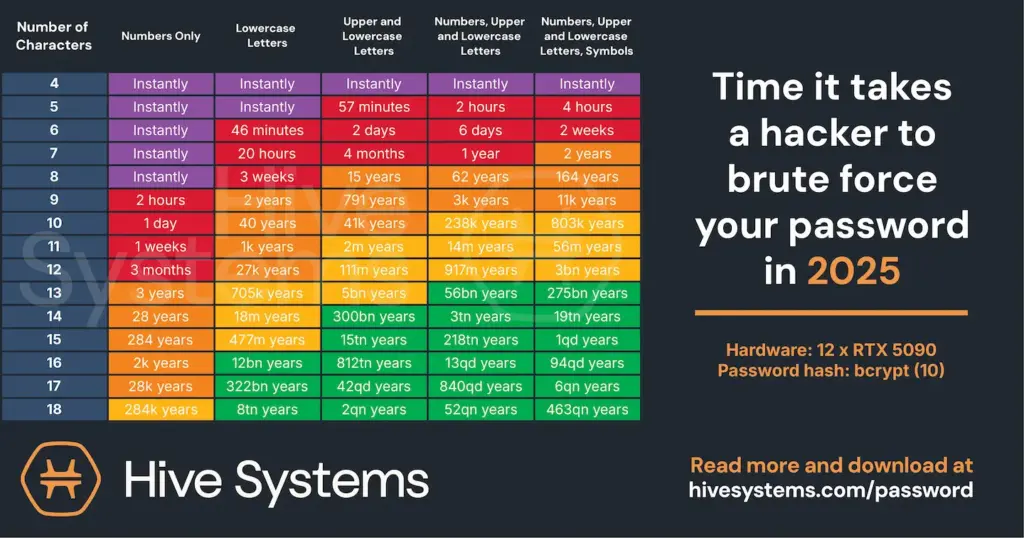
Password is a thing of the past. Or at least it should be. Passwords can easily be hacked because they are not complex enough. If you create very complex passwords that you can’t remember, you will need to write them down for future reference. Hive Systems has tested how long it takes to hack a password in 2025. You can see the result in the table below. The time it takes to brute-force a password decreases each year as hardware becomes more powerful.
How to prevent your password from getting brute-forced?
The short answer is that you don’t use passwords to access your servers. Instead, you choose an alternative method. In this article, we will explore how to access Linux servers using SSH keys rather than passwords. We will create an SSH key based on the Ed25519 algorithm. This algorithm is preferred for a number of reasons, which are outlined below.
- Security: Ed25519 is based on the EdDSA (Edwards-curve Digital Signature Algorithm), offering strong security and resilience against various cryptographic attacks. It is considered more resistant to certain types of attacks than RSA.
- Performance: Ed25519 typically outperforms RSA in key generation, signing, and verification, enabling faster SSH connections and reduced computational load for both clients and servers.
- Key Length: Ed25519 achieves equivalent security with shorter keys than RSA, improving efficiency and reducing storage needs.
- Algorithm Maturity: Although RSA is a long-established standard, Ed25519 is widely adopted and has been thoroughly analyzed by cryptography experts.
Let’s secure access to your servers with SSH Keys
The first step is to create a key pair. Use the following command to start the wizard.
ssh-keygen -t ed25519
During the key pair creation wizard, you need to give the key pair a name and a passphrase. I will name my kay pair labkey and will just leave my passphrase empty. It is recommended to fill out a passphrase, but for this demonstration, I will leave it empty. The wizard has now created these two files:
- labkey
- labkey.pub
Now you need to copy the labkey.pub file to the server you wish to secure with your SSH key pair. Type in this command to copy your public key to the server.
ssh-copy-id -i ./labkey.pub kubadmin@192.168.1.31
Once the public key has been copied to the server, you need to change your sshd_config file. Type in the command below to access the sshd_config file.
sudo nano /etc/ssh/sshd_config
Find the line shown below and remove the “#” sign to uncomment the line. Save and exit the file.
PubkeyAuthentication yes
Restart sshd on your system with the following command.
sudo systemctl restart ssh
Back on your client machine, you can now add the private key to your SSH agent. You can do that with the command below.
ssh-add ./labkey
The identity is now added, and you can test the SSH connection with this command.
ssh kubadmin@192.168.1.31
Notice that you don’t need to specify a password. That is because you are now using your private key to authenticate.
You have now increased the security of accessing your Linux server.